 MkSaaS Docs
Captcha
Learn how to set up and use captcha in MkSaaS
MkSaaS supports using Cloudflare Turnstile as a captcha service. This allows you to protect your website from spam and abuse.
Setup
Log in to Cloudflare
Log in to the Cloudflare dashboard and select your account.
Create a Turnstile Widget
Click Turnstile. Select Add widget and fill out the site name and your website's hostname (e.g. YOUR-DOMAIN.com or localhost).
Configure Widget Mode
Select the widget mode to Managed. Opt in for pre-clearance support (Optional).
Set Environment Variables
Copy your Site Key and Secret Key and paste it into your environment variables file as NEXT_PUBLIC_TURNSTILE_SITE_KEY and TURNSTILE_SECRET_KEY.
NEXT_PUBLIC_TURNSTILE_SITE_KEY=
TURNSTILE_SECRET_KEY=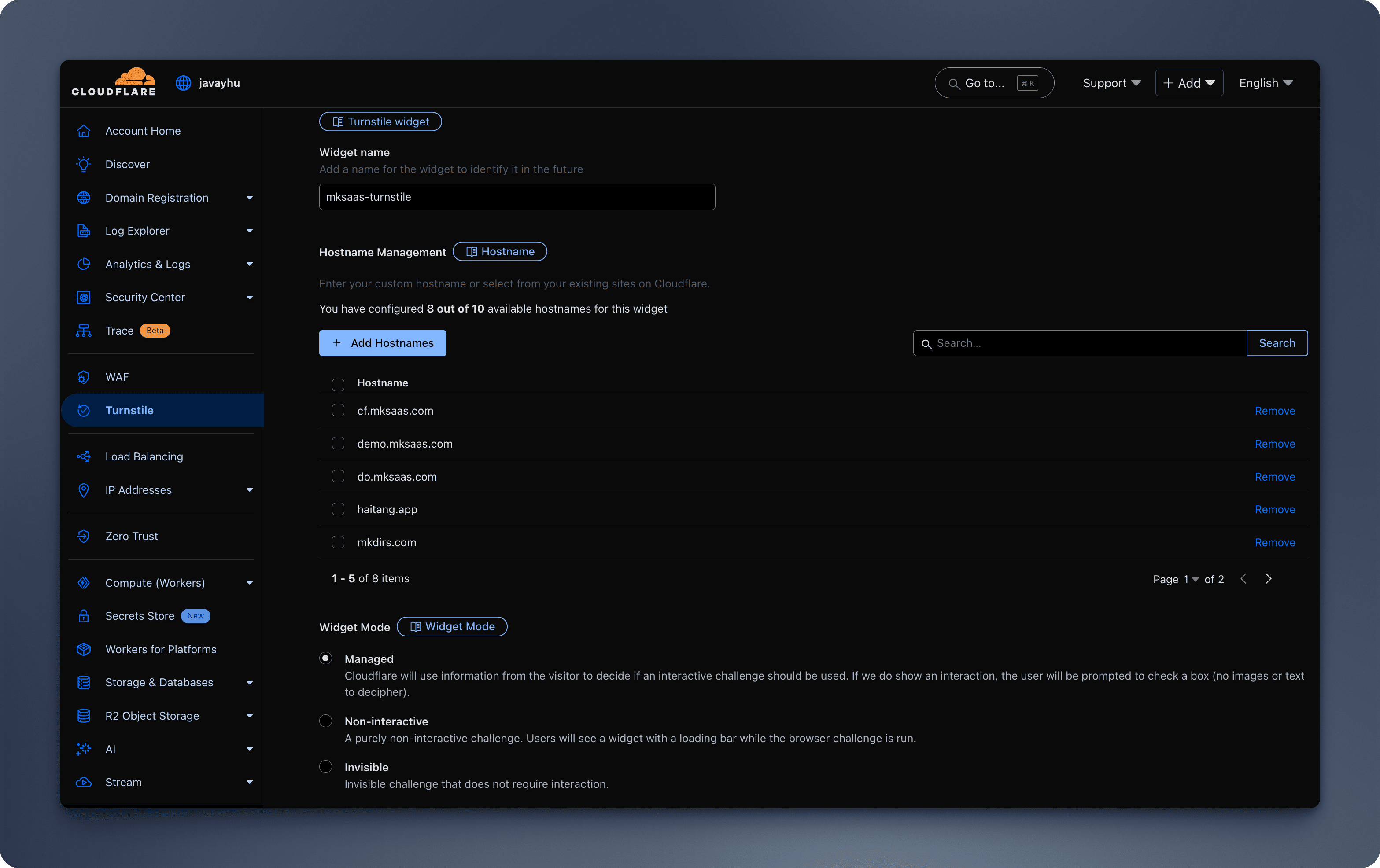
Enable Captcha in Configuration
Set enableTurnstileCaptcha to true in website.tsx file (default is false)
export const websiteConfig: WebsiteConfig = {
  features: {
    enableTurnstileCaptcha: true,
  },
}
For more details, see the Cloudflare Turnstile Documentation and React Turnstile Documentation.
If you are setting up the environment, now you can go back to the Environment Setup guide and continue. The rest of this guide can be read later.
Environment Setup
Set up environment variables
Captcha System Structure
components/shared/captcha.tsx: The captcha component.lib/captcha.ts: The captcha library for validating the captcha.
Usage
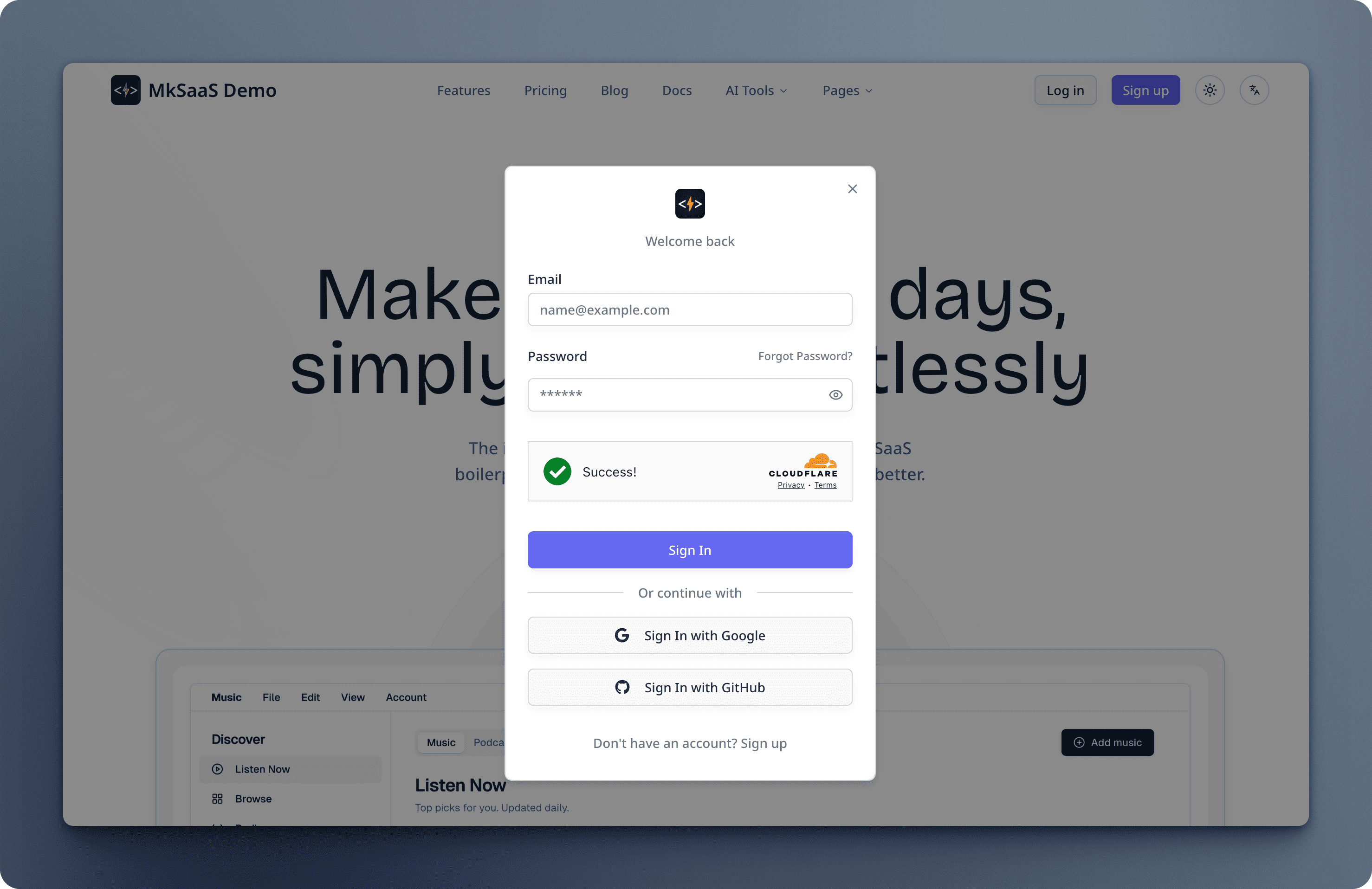
The captcha component is only used in the login and register form for now, but you can use it in other places as well.
import { Captcha } from '@/components/shared/captcha';

export default function RegisterForm() {
  // ...

  return (
    <Form {...form}>
      <form onSubmit={form.handleSubmit(onSubmit)}>
        {/* ... */}
        <Captcha
            onSuccess={(token) => form.setValue('captchaToken', token)}
            validationError={form.formState.errors.captchaToken?.message}
          />
          <Button
            disabled={isPending || (turnstileEnabled && !captchaToken)}
            size="lg"
            type="submit"
            className="cursor-pointer w-full flex items-center justify-center gap-2"
          >
            {isPending && <Loader2Icon className="mr-2 size-4 animate-spin" />}
            <span>{t('signUp')}</span>
          </Button>
        </form>
    </Form>
  );
}
Reference
- Cloudflare Turnstile Documentation
- React Turnstile Documentation
- Adding Cloudflare Turnstile to Next.js 15
Video Tutorial
Next Steps
Now that you understand how to work with notifications in MkSaaS, explore these related integrations: